Ask most AI image generators to write Chinese characters inside an image, and you will get something that looks like Chinese from a distance — until you look closer. The strokes are there, but they do not form real characters. A poster that should say "周末市集" comes back with shapes that resemble 周 and 末 but are not quite either.
Training data, tokenizer behavior, and model objectives all affect how well an image model reproduces Chinese text. MOSS-Image takes a different approach: it is a 5-billion-parameter open-source model from OpenMOSS, and its official project highlights Chinese text rendering as a core capability. The user guide includes Chinese prompt examples and visible Chinese writing in its sample outputs.
This article covers three ways to prompt for Chinese text, how to build bilingual designs, when Chinese text fails, and a proofreading checklist you can use before publishing anything.
Why Chinese text is hard for AI image generators
A model generating Chinese text has to solve two problems at once: create a coherent visual scene and draw recognizable characters as part of that scene. Chinese characters are dense — 繁 has seventeen strokes in a compact square. Similar-looking characters like 未 and 末 differ by a single stroke length. Decorative lettering, long lines, and mixed punctuation all increase the chance of an error.
Image models vary widely in their training data and text objectives. A visually strong model may still produce plausible-looking strokes instead of the exact Chinese characters requested, so every headline needs direct testing.
MOSS-Image is different because text rendering was an explicit training objective. The official OpenMOSS user guide describes it as capable of Chinese and English text generation, and the published examples include Chinese writing in both natural-language prompts and structured JSON layouts.
Three ways to prompt for Chinese text
You do not have to translate your idea into English before using it. The official guide supports Chinese prompts directly. Choose the approach that preserves your intent and makes the visible wording unambiguous.
Approach 1: Full Chinese prompt. Write the entire prompt in Chinese. This is fastest when your idea is naturally in Chinese and you are iterating quickly.
一只戴圆框眼镜的橘猫坐在窗台上,木牌上写着"慢慢来",柔和的午后阳光,1024×1024Approach 2: English scene description with Chinese text in quotes. Describe the scene in English, but keep the exact Chinese wording inside quotation marks. This gives the model its strongest language for the visual scene while preserving the exact characters you need.
An orange cat with round glasses sitting on a windowsill. A wooden sign reads "慢慢来". Soft afternoon light, 1024×1024Approach 3: JSON layout with Chinese text items. Give each language its own text item with explicit bounding boxes. This is the most precise option and works best for bilingual designs.
{
  "label": "text",
  "caption": "Top line in Chinese serif lettering",
  "text": "今日特调",
  "bbox": [-380, -420, -240, 420]
}
The first two approaches will get you started. Use JSON layout when the relative position of Chinese and English text matters — a bilingual menu, a poster with both languages, or a product label with mixed scripts.
Building bilingual designs
Putting Chinese and English in the same image requires more care than either language alone. The two scripts have different visual densities — a five-character Chinese phrase takes less horizontal space than its English equivalent. They also have different typographic traditions for weight, spacing, and alignment.
The most reliable approach is to give each language its own element. In a free-form prompt, describe both strings clearly:
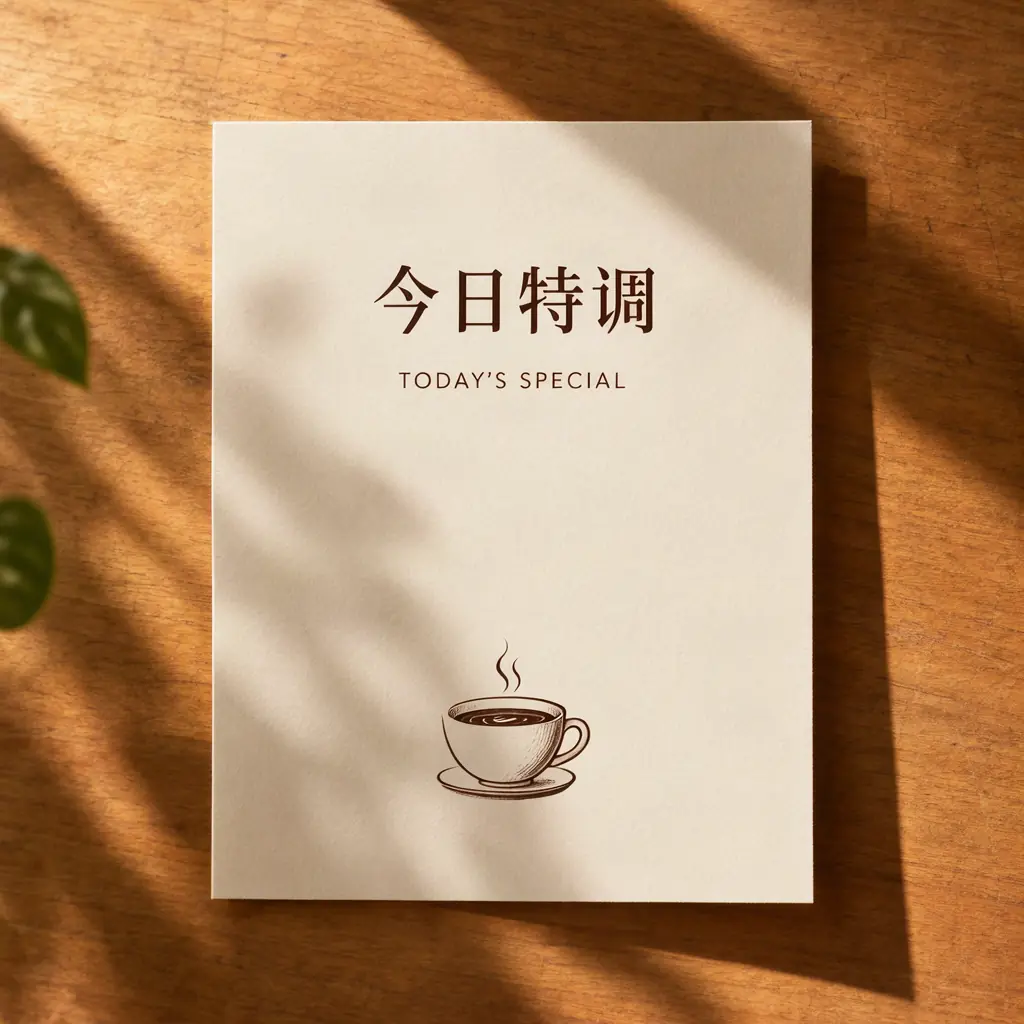
A cream paper café menu card photographed from above on a wooden table. "今日特调" written in elegant serif Chinese at the top in dark brown. "TODAY'S SPECIAL" in clean sans-serif English below it. A delicate line-drawing of a steaming coffee cup at the bottom. Warm natural window light from the left, editorial food photography, 1024×1024In JSON layout, create separate text items:
{
  "summary": {
    "caption": "A bilingual café menu card on cream paper, minimal typography."
  },
  "items": [
    {
      "label": "text",
      "caption": "Top line in Chinese serif lettering",
      "text": "今日特调",
      "bbox": [-380, -420, -240, 420]
    },
    {
      "label": "text",
      "caption": "Second line in English sans serif lettering",
      "text": "TODAY'S SPECIAL",
      "bbox": [-200, -380, -80, 380]
    }
  ],
  "bbox_format": "yxyx",
  "bbox_coord_space": "abs_centralized"
}
The key principle: do not cram both languages into one text field. Separating them gives the model clearer guidance and makes it easier to spot which language failed if the output is wrong.
Two working bilingual prompts from the gallery
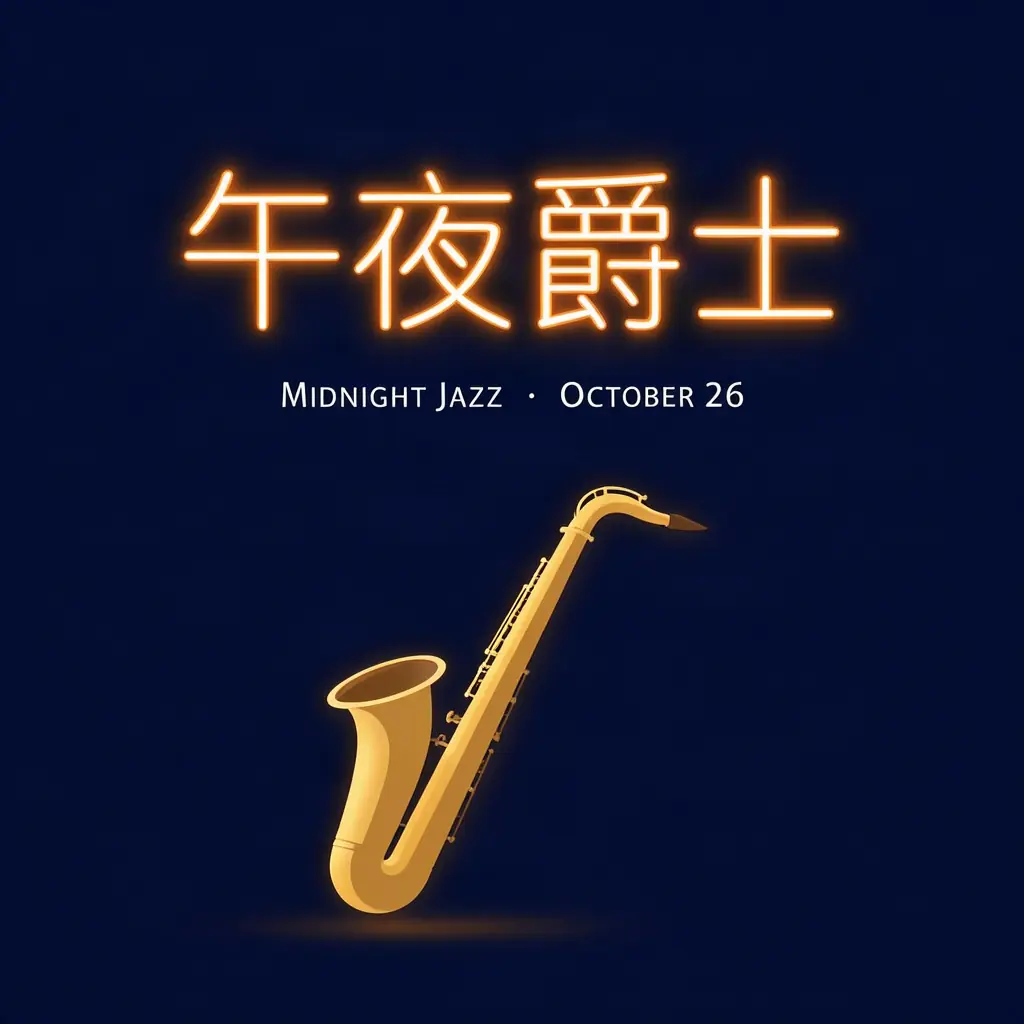
These prompts produced real images in the mossimage.run gallery. Both used MOSS-Image SFT at 1024 × 1024 with 50 inference steps and prompt expansion enabled. Copy either prompt, then change the wording to fit your project.
Bilingual café menu:
A cream paper café menu card photographed from above on a wooden table, "今日特调" written in elegant serif Chinese at the top in dark brown, "TODAY'S SPECIAL" in clean sans-serif English below it, a delicate line-drawing of a steaming coffee cup at the bottom, warm natural window light from the left, editorial food photography, 1024×1024Midnight jazz poster:
A minimalist concert poster, deep navy blue background, "午夜爵士" in warm glowing neon-style Chinese characters spanning the top third, "MIDNIGHT JAZZ · OCTOBER 26" in small white sans-serif letters centered below, a single golden saxophone silhouette floating beneath the text, atmospheric nightclub mood, 1024×1024Both prompts use the "English scene + Chinese text in quotes" pattern. The English describes the medium, lighting, and composition — areas where the model has the most training data. The Chinese words in quotation marks tell the model exactly which characters to render.
When Chinese text fails — and what to do
Chinese text generation is probabilistic. Even with a model trained for it, some outputs will contain errors. These are the most common failure modes and what to do about each.
Substituted strokes. A character like 繁 comes back with seventeen strokes, but one is in the wrong place. The character looks almost right at a glance and wrong under inspection. Fix: Shorten the text string. A two-character phrase is more reliable than a four-character idiom.
Invented characters. The model produces a shape that looks like a Chinese character but is not one. This happens most often with rare characters or decorative scripts. Fix: Stick to common characters in the first few generations. Add stylized lettering only after basic text works.
Mixed punctuation. Full-width Chinese punctuation (,。) and half-width English punctuation (,. ) get swapped in mixed-language lines. Fix: Keep punctuation consistent within each language block. Do not mix Chinese and English in the same sentence.
Reading order errors. A vertical layout becomes horizontal, or right-to-left text flips. Fix: Specify the direction explicitly in the prompt. "Vertical Chinese text reading top to bottom, right to left" is clearer than hoping the model infers the correct orientation.
Drifting text. Characters appear outside their intended region, especially near the edges of a bounding box. Fix: Leave generous padding. A box of [-400, -420, -180, 420] leaves 112 pixels of headroom at the top and 332 at the bottom for a 1024 canvas.
Proofreading checklist
Before you publish any image with Chinese text, go through this list at full resolution:
- □ Characters with many strokes — 繁, 餐, 鑫, 龍 — are every stroke present and in the correct position?
- □ Similar forms — 未 vs 末, 己 vs 已, 人 vs 入 — is the distinguishing stroke correct?
- □ Full-width and half-width punctuation — are they consistent within each language block?
- □ Mixed-language lines — are English letters, numbers, and Chinese characters not crowding each other?
- □ Line breaks and reading order — does the text flow in the expected direction?
- □ Edge characters — are the first and last characters in each line fully inside the intended region?
Shorten a line when accuracy matters. Enlarge the layout region. Compare more than one result when your credits allow. For production work, correct critical lettering in a design editor after generation. The model can provide a useful visual draft, while final verification and correction remain your responsibility.
Try it free
A verified account on mossimage.run receives three one-time starter image credits. No credit card or subscription is required. The studio includes the bilingual café menu and midnight jazz poster as one-click examples.
More guides: JSON layout guide · Prompt writing tips · MOSS-Image vs FLUX comparison
Official source (checked October 23, 2026): OpenMOSS user guide
Three starter images. No credit card. [Start generating →](/#studio)