Most AI image generators take a text prompt and return an image. Where things appear in that image depends on how the model interprets words like "top left" or "centered below." The result is often close — but not close enough when you need a title in a specific region and a product image in another.
MOSS-Image introduces a different approach: describe the image as structured JSON data. Instead of "put the title at the top and the product photo below," you give each element an explicit bounding box measured in pixels from the canvas center. The model reads that structure as layout guidance. It is not pixel-perfect desktop publishing, but it gives the model more explicit spatial guidance than adjectives alone.
This guide covers every field, how coordinates work, three working examples you can copy, and the most common mistakes.
What is a JSON image prompt?
A JSON image prompt has three parts:
- A summary caption — describes the overall scene, medium, palette, and visual relationship between items. This is your free-form description, like a normal prompt.
- An items array — a list of text and object elements, each with a label, caption, optional visible text, and a bounding box.
- Format declarations —
bbox_formatandbbox_coord_space, which tell the model how to read the coordinates.
The model reads the summary for the overall scene, then uses the items and their bounding boxes as layout guidance. The result is an image where a title tends to appear in the upper half and an object in the lower half — not because you said "top" and "bottom," but because you gave it pixel coordinates.
OpenMOSS marks layout prompts as experimental. Coordinates make the request more explicit, but the final position, lettering, and visual details can still vary. Start with two or three large items, leave generous space between regions, and change one box at a time.
Complete field reference
| Field | Required | Value | Purpose |
|---|---|---|---|
summary.caption | Yes | String | Overall scene, medium, palette, and visual relationship between items |
items | Yes | Array | List of text and object elements |
label | Yes | "text" or "object" | Identifies the type of each item |
caption | Yes | String | Describes the item's appearance, role, and intended position |
text | For text items | String | The exact visible wording requested from the model |
bbox | Yes | Four numbers [top, left, bottom, right] | The intended region in pixels from canvas center |
bbox_format | Yes | "yxyx" | Declares the bounding-box value order |
bbox_coord_space | Yes | "abs_centralized" | Uses absolute pixel coordinates measured from canvas center |
The text field is required only on items labeled "text". An "object" item describes a visual element — a fern, a bottle, a coffee cup — and does not need a text field.
How centered bounding boxes work
This is the part most people get wrong on the first try. The coordinate system uses the canvas center as its origin, not the top-left corner.
For a 1024 × 1024 canvas:
- The horizontal axis runs from −512 to +512. Negative x moves left, positive x moves right.
- The vertical axis runs from −512 to +512. Negative y moves up, positive y moves down.
- The center is
[0, 0].
A box of [-400, -420, -180, 420] reads as:
- Top edge: −400 (400 pixels above center)
- Left edge: −420 (420 pixels left of center)
- Bottom edge: −180 (180 pixels above center)
- Right edge: 420 (420 pixels right of center)
This is a wide rectangle in the upper half of the canvas.
The value order is yxyx — [top, left, bottom, right]. This is not the [left, top, right, bottom] order used by many graphics libraries. Getting the order wrong is the single most common mistake.
Rules to remember:
- The top value must be smaller than the bottom value
- The left value must be smaller than the right value
- Every edge must remain within the canvas bounds (−512 to +512 for a 1024 canvas)
- Changing the canvas size changes the valid range — portrait and landscape options have different width and height limits
Example 1: Botanical poster
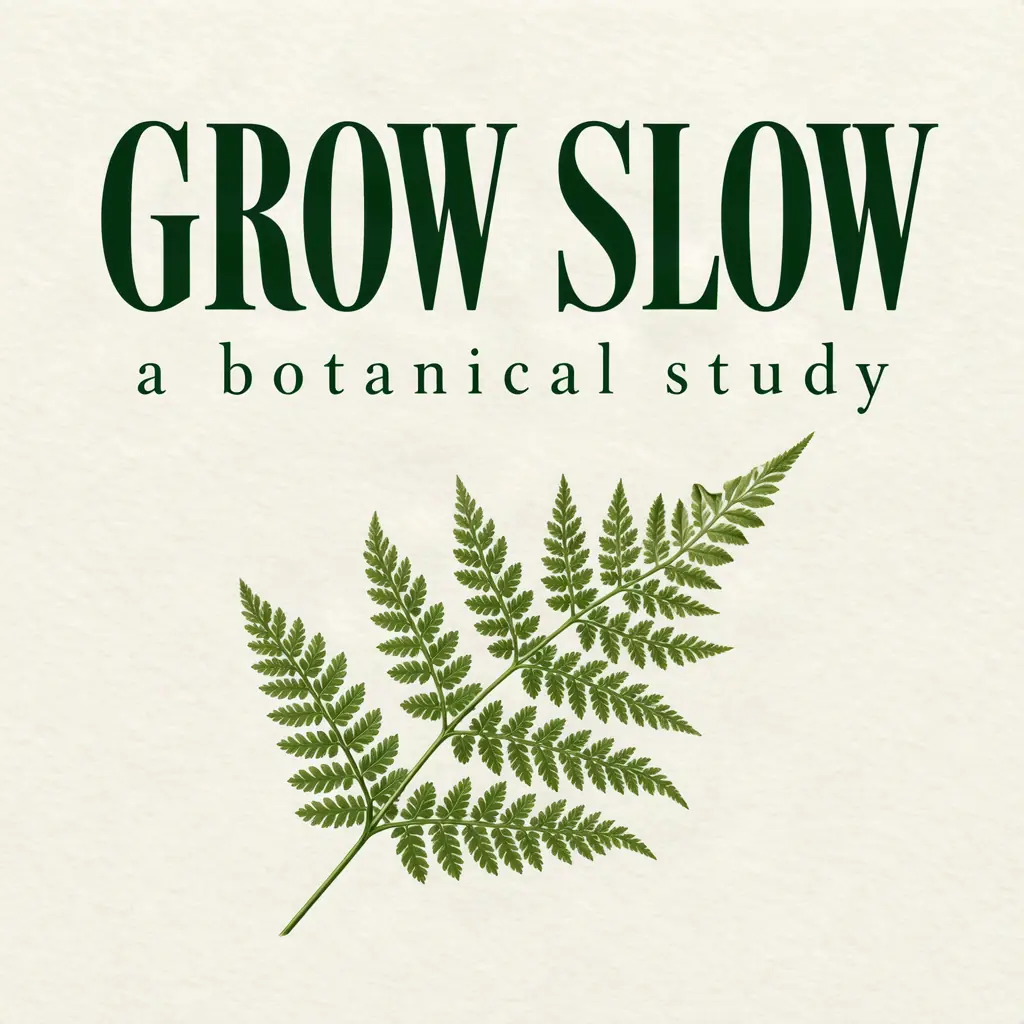
This is the simplest working example included in the studio. Two items: a title in the upper half and a fern illustration in the lower half.
{
  "summary": {
    "caption": "An editorial botanical poster on ivory textured paper, deep forest green lettering and a finely detailed fern illustration."
  },
  "items": [
    {
      "label": "text",
      "caption": "Large serif title in the upper portion in forest green",
      "text": "GROW SLOW",
      "bbox": [-400, -420, -180, 420]
    },
    {
      "label": "text",
      "caption": "Small subtitle below the title in matching green",
      "text": "a botanical study",
      "bbox": [-160, -380, -60, 380]
    },
    {
      "label": "object",
      "caption": "A finely detailed green fern with delicate fronds in the lower half",
      "bbox": [-80, -280, 420, 280]
    }
  ],
  "bbox_format": "yxyx",
  "bbox_coord_space": "abs_centralized"
}
What to notice: The title box occupies the top 220 pixels (from y=−400 to y=−180) across almost the full width. The subtitle sits directly below it with a smaller box. The fern fills the lower portion from y=−80 to y=420. There is a 100-pixel gap between the subtitle and the fern — enough room to prevent overlap.
Example 2: Product showcase
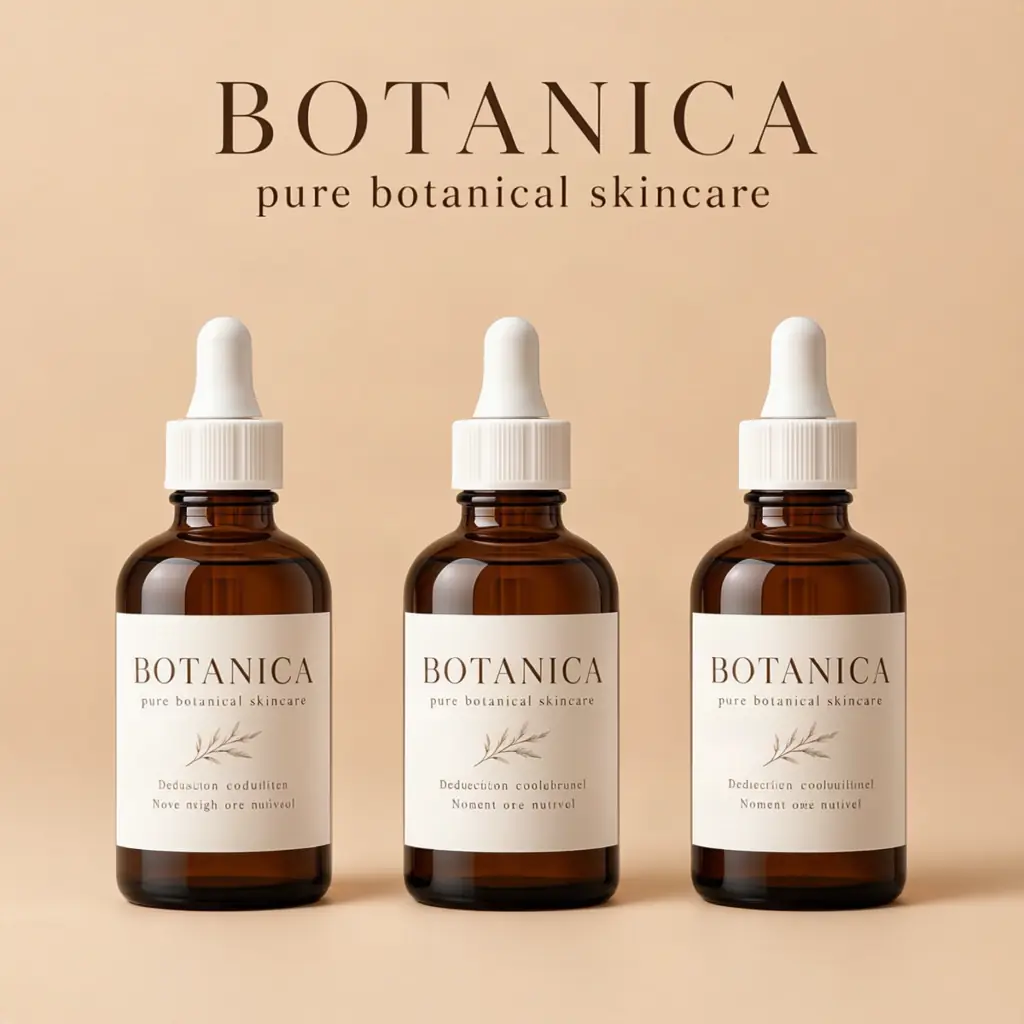
Three items: a brand name, a tagline, and three product bottles arranged in a row.
{
  "summary": {
    "caption": "A clean product showcase on a warm beige background, three amber glass skincare bottles with white labels arranged in a row, soft studio lighting, 1024×1024"
  },
  "items": [
    {
      "label": "text",
      "caption": "Brand name centered at the top in elegant serif",
      "text": "BOTANICA",
      "bbox": [-440, -300, -370, 300]
    },
    {
      "label": "text",
      "caption": "Tagline below the brand name in smaller type",
      "text": "pure botanical skincare",
      "bbox": [-350, -260, -290, 260]
    },
    {
      "label": "object",
      "caption": "Three amber glass dropper bottles with white labels, evenly spaced from left to right, soft reflections",
      "bbox": [-200, -400, 400, 400]
    }
  ],
  "bbox_format": "yxyx",
  "bbox_coord_space": "abs_centralized"
}
What to notice: The text items occupy narrow horizontal bands, while the object item spans almost the full width. The boxes do not overlap. The brand name and tagline sit above the product bottles, creating a natural top-to-bottom reading order.
Example 3: Bilingual café menu
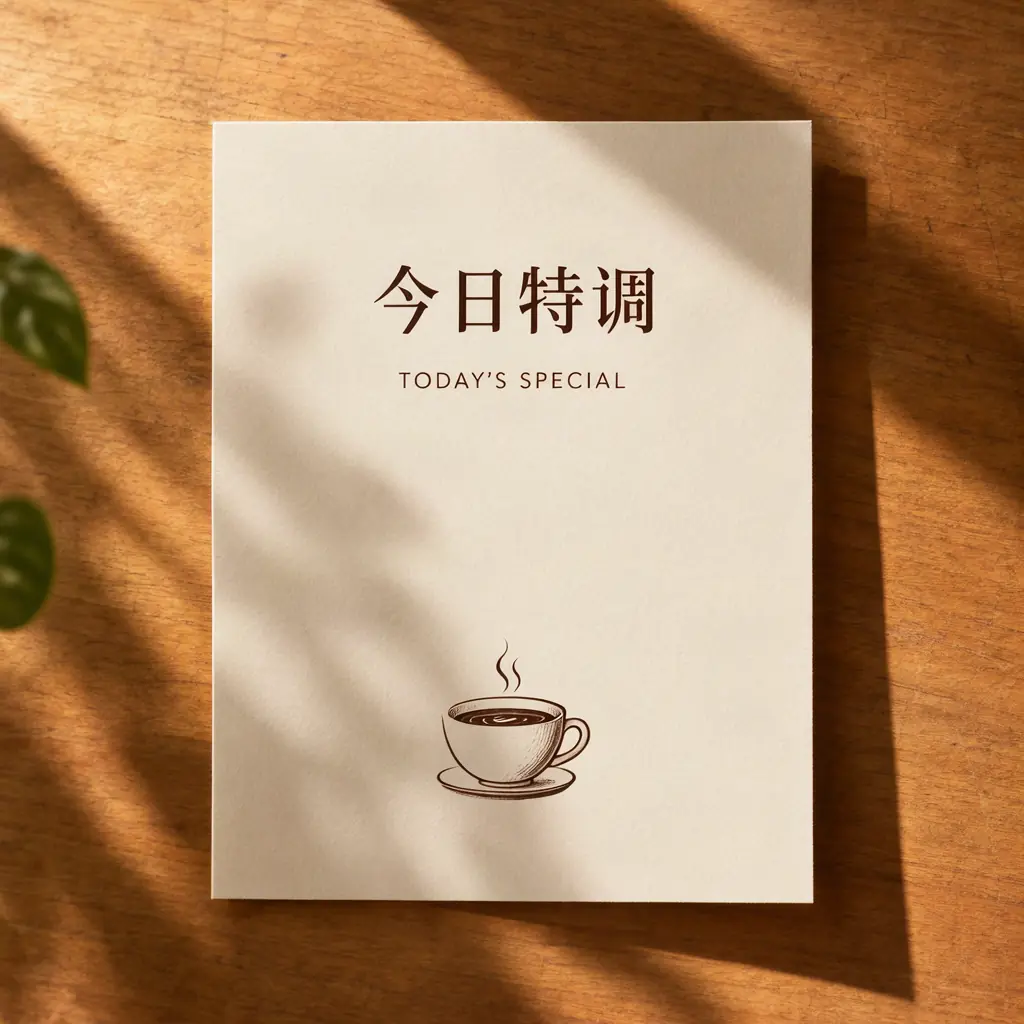
Four items: two text lines (one Chinese, one English), one object (a coffee cup illustration), and a structured composition. This example uses the same format but with bilingual content.
{
  "summary": {
    "caption": "A bilingual café menu card on cream paper, minimal typography."
  },
  "items": [
    {
      "label": "text",
      "caption": "Top line in Chinese serif lettering",
      "text": "今日特调",
      "bbox": [-380, -420, -240, 420]
    },
    {
      "label": "text",
      "caption": "Second line in English sans serif lettering",
      "text": "TODAY'S SPECIAL",
      "bbox": [-200, -380, -80, 380]
    },
    {
      "label": "object",
      "caption": "A small coffee cup illustration",
      "bbox": [40, -160, 360, 160]
    }
  ],
  "bbox_format": "yxyx",
  "bbox_coord_space": "abs_centralized"
}
What to notice: Each language gets its own text item with its own bounding box. This is cleaner than trying to put both languages in one text field and hoping the model figures out the layout. The Chinese heading, English subtitle, and coffee cup illustration each have dedicated regions.
Common JSON prompt errors
These are the mistakes that come up most often, in order of frequency:
- Using top-left coordinates instead of center-based coordinates. The origin is the canvas center, not the upper-left corner. A box at
[0, 0, 200, 200]with top-left thinking places it in the corner — but in this system, it places it in the upper-left quadrant starting from the center.
- Writing boxes as `[left, top, right, bottom]`. The required order is
yxyx—[top, left, bottom, right]. This trips up anyone coming from CSS, PIL, or most graphics libraries.
- Leaving out the `text` field on an item labeled `"text"`. The validator rejects this because there is nothing for the model to render.
- Placing a box partly outside the canvas. If your right edge is 600 on a 1024 canvas, half the box is off the image. The studio validates every box against the selected canvas before sending a paid request.
- Creating overlapping regions. Give each item its own space. Overlapping boxes compete for the same pixels and produce unpredictable results.
- Expecting pixel-perfect typography. Bounding boxes guide composition — they do not turn the model into InDesign. Generated text will still vary in size, kerning, and exact placement.
When to use JSON layout vs free-form prompts
Use JSON layout when:
- You have specific text and object regions that must not overlap
- The reading order matters — a poster with title, subtitle, and footer
- You are building a template that others will reuse with different text
- You need a reproducible structure across multiple generations
Use free-form prompts when:
- The composition is atmospheric rather than structured
- You are exploring ideas and want the model to surprise you
- The image has one main subject with no competing elements
- You are iterating quickly and prefer fast iteration over precise placement. If a prompt takes thirty seconds to write and the result is good enough, JSON layout is unnecessary overhead.
Try JSON layout yourself
The studio includes the botanical poster example pre-loaded in JSON Layout mode. Open it, edit the text and coordinates, and generate. Three starter images are free with email verification.
More guides: JSON Layout Generator · Prompt writing tips · Chinese text layouts
Official source (checked October 23, 2026): OpenMOSS Layout Prompts specification
Start with a working example and change one coordinate at a time. [Open the studio →](/#studio)